Inside
DockCast
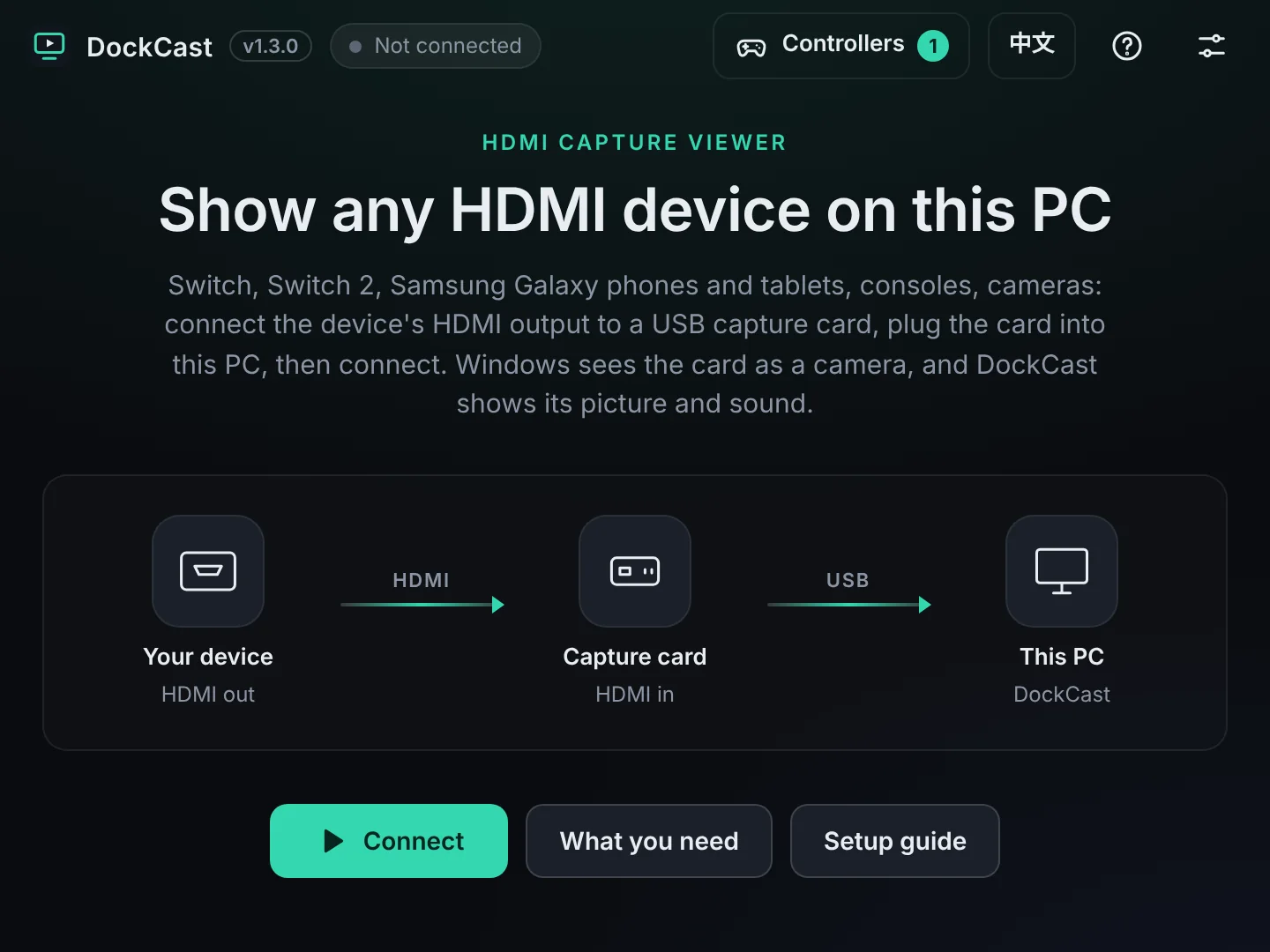
Puts your Nintendo Switch, Switch 2, Samsung phone or tablet, or anything else with HDMI on your Windows PC's screen, with sound.
DockCast shows the picture and sound from your Switch, phone, tablet or console in a window on your PC. Plug the device into a USB capture card, open DockCast and play on your computer screen.
Windows only, and you'll need a USB HDMI capture card: a PC's own HDMI port can only send a picture out.
Why I built it
Normally you connect a Switch to a monitor with an HDMI cable. But the spot where I keep my Switch is far from my monitor, and running a cable straight across would make my room a mess. So I made an app that shows the Switch on my PC, and my PC then projects it to the monitor wirelessly. Everything is connected, and my room stays tidy.
How it works
- Step 1
Plug it in
An HDMI cable from your Switch dock or phone adapter into a capture card, and the card into a USB port on your PC.
- Step 2
Click Connect
DockCast finds the capture card by itself. Windows sees the card as a camera, so allow the camera the first time.
- Step 3
Play on your PC
The picture and sound appear. Double-click for full screen. Next time it connects as soon as you open it.
- Step 4
Keep the best bits
Take screenshots and record videos. They go straight into your Pictures and Videos folders.
What it can do
Switch controllers on your PC
Connects Joy-Con and Pro Controllers over Bluetooth for PC games, and warns you when a battery is running low.
Not just the Switch
Switch 2, Samsung Galaxy phones and tablets, PlayStation, Xbox, Steam Deck, laptops and cameras.
Up to 4K
1080p at 60 fps suits most cards, and it goes up to 4K 60 or 1440p 120 if your card can take it.
A guide for each device
A checklist of what to get before you start, and the settings each device needs.
Help when it's black
If the picture stays black, it tells you why that usually happens and how to fix it.
Stays on your PC
Nothing you see, hear or record is sent anywhere, and there's no account.
Where it runs
- WindowsThe app, or the .html file in Edge or Chrome
Good to know
- Free, with nothing to install: it's one file. Windows may warn you the first time, because the app isn't signed. Click More info, then Run anyway.
- You need a USB HDMI capture card. A cheap one that says 1080p 60fps and USB 3.0 is enough for most people.
- Every capture card adds a little delay. For fast games, plug a monitor into the card's HDMI OUT, play on that and keep DockCast as a second screen.
- Netflix and other streaming apps always show black, because of their copy protection. Games and everything else work.
- Connecting controllers needs the app, not the .html file, and a PC with Bluetooth. It does everything Switch Controller Connector does, and your nicknames carry over.
- In English or Traditional Chinese (繁體中文).